Learn Git: The Essentials for Beginners
Git for Beginners: Basics and Essential Commands
What is Git?
Git is A tool that helps you keep track of changes in your code. Imagine Person A develops a software project and writes all the code on his system. After some time, he needs help from Person B to add new features. To share the project, Person A compresses the files and sends them to Person B using a pen drive.
Person B updates the code, saves a copy on his own system, and returns the pen drive to Person A.
As more developers join the project and start making changes, this process becomes confusing. It becomes hard to track the latest version of the code, understand who made which changes, and continue building new features without conflicts.
To solve this problem, we need a system that can track all code changes. For this purpose, we use a tool called Git, which is a version control system (VCS). Git keeps a record of every change made to the code, allowing developers to track updates, collaborate efficiently, and manage different versions of a project.
Why do we use Git?
We use Git to keep track of changes that are made in our code. It allows us to save different versions of a project so we can go back if something goes wrong. Git helps developers work together on the same code without overwriting each other’s work. It also makes it easier to find mistakes, experiment safely, and manage projects efficiently.
To keep the project on track.
We can modify the code.
Multiple developers can work on the same project.
Terminologies
Repository(Repo): A place where your project files and their complete history are stored. Initially, the repository exists locally on your system because Git works independently without requiring an internet connection.
Working Directory (Working Tree): This is the folder where you actively work on your project files. It contains files that may be tracked or untracked, and it reflects the current state of your work before changes are committed.
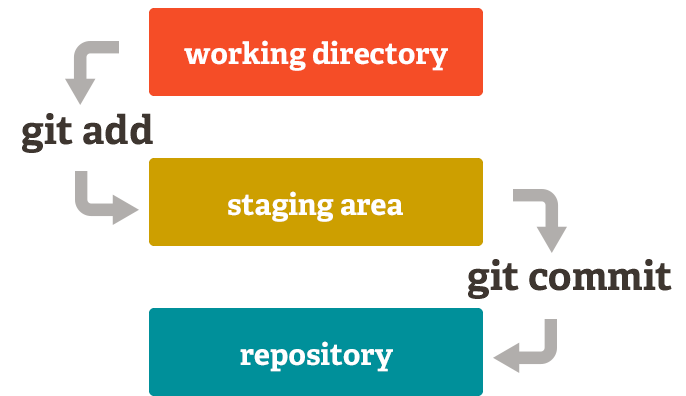
Staging Area (Index): An area where you prepare changes by selecting modified, added, or deleted files using the git add command before committing them to the repository.
Commit: It is a command used to permanently save the changes you've made in your local repository. Each commit has a unique identifier (SHA), a message describing the changes, and a pointer to the previous commit(s).
Branch: A separate line of development within the repository used to work on features without affecting the main code.
HEAD: A pointer that always refers to the most recent commit of the currently checked-out branch (or directly to a specific commit in a detached HEAD state).
Git Commands
git init – This command initializes a new Git repository in the current directory. It sets up the necessary Git files and allows Git to start tracking changes in the project.
git status – Shows the current state of the working directory and staged files.
git add – This command is used to add changes from the working directory to the staging area. It prepares modified, new, or deleted files to be included in the next commit.
git commit – Saves the staged changes with a message.
git log – This command displays the complete history of commits in the repository. It shows details such as commit ID, author, date, and commit message, helping you track changes made to the project over time.
git diff – This command shows the differences between file changes in your working directory and the staging area. It helps you review what has been modified in the code before adding the changes to the staging area or committing them.
git revert<hash> – This command creates a new commit that reverses the changes introduced by a specific commit, identified by its hash. It does not delete the commit history, making it a safe way to undo changes in a shared repository.
git revert – This command is used to undo changes by creating a new commit that reverses the effects of a previous commit. It preserves the commit history, which makes it safe to use in collaborative projects.

